Sage Cloud Demat Invoicing keeps you informed in two ways:
You configure both per user. What you switch on or off changes nothing for your colleagues.
On that page, the Dashboard, Document notifications and Email notifications blocks appear one below the other.
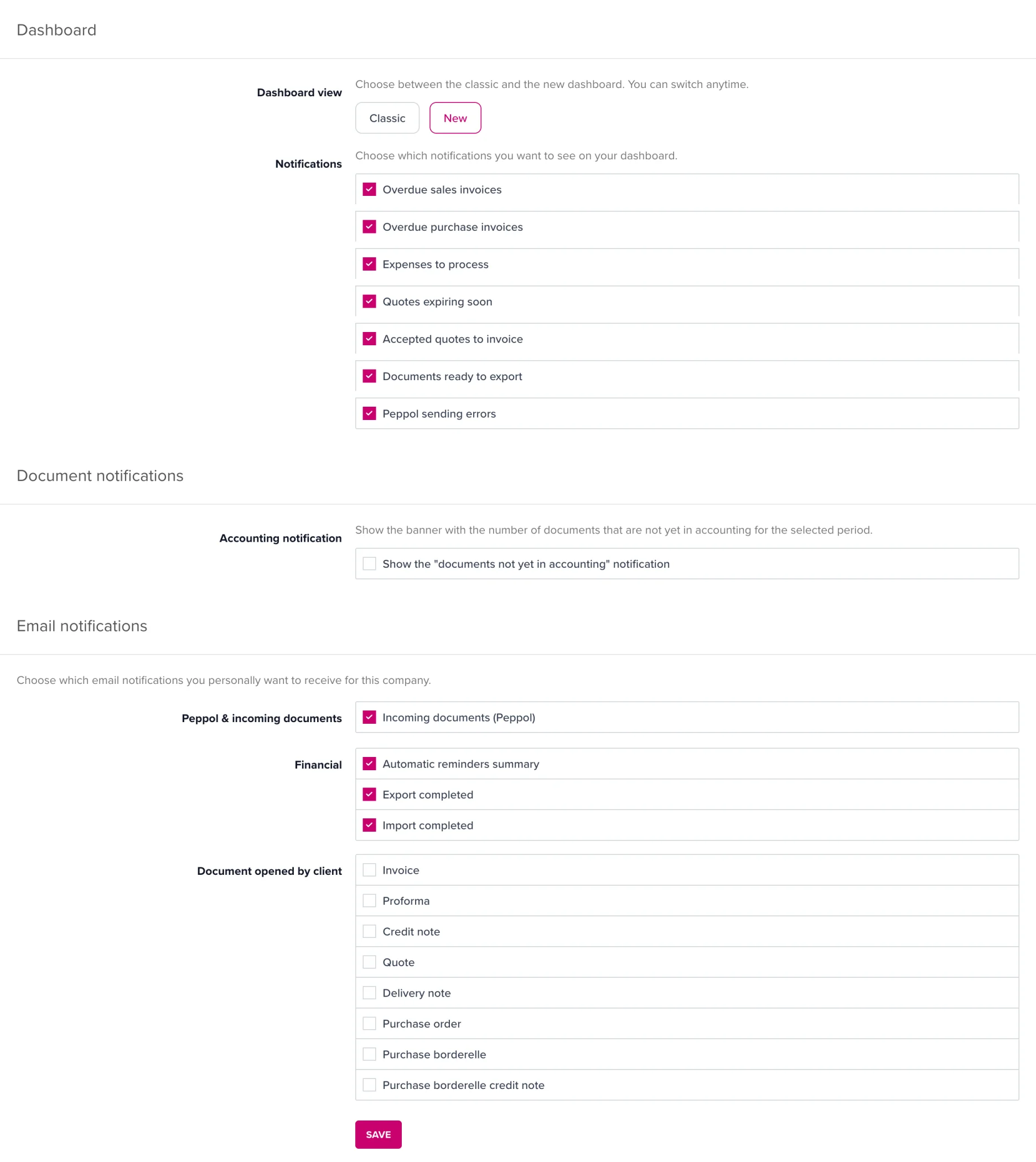
Under Dashboard you find the Notifications section, with the text Choose which notifications you want to see on your dashboard. Tick what you want to see and untick what doesn’t interest you:
| Notification | When it appears |
|---|---|
| Overdue sales invoices | You have invoices whose due date has passed |
| Overdue purchase invoices | You still have a supplier invoice to pay |
| Expenses to process | Scanned or received documents are waiting to be finalised |
| Quotes expiring soon | A quote is about to expire and needs follow-up |
| Approved quotes to invoice | A customer approved your quote, you can invoice |
| Documents ready to export | Documents are ready to be sent to your accountant |
| Peppol sending errors | A document was not sent correctly via Peppol |
Every change is saved immediately, you don’t have to click Save separately.
💡 Tip: You can also dismiss a notification straight from the dashboard via Hide notification. You reactivate it here, under My account > Dashboard.
Under Document notifications there is a separate switch for the banner that appears at the top of your document lists showing how many documents have not yet been forwarded to accounting.
Untick Show the “documents not yet in accounting” notice to hide that banner everywhere. You’ll find more explanation in What does the “documents are not yet in accounting” message mean?
Under Email notifications you find Choose which email notifications you personally want to receive for this company. The list is grouped by theme:
| Theme | Notification |
|---|---|
| Peppol and incoming documents | Daily summary of newly received Peppol and scanned documents |
| Accountant | Daily summary of open edit requests, or an immediate notification as soon as one comes in |
| Financial | Summary after automatic payment reminders have been sent |
| Financial | Notification when an export to your accounting connection is ready, or when an import has finished |
| Document opened by customer | Notification when a customer opens your invoice or quote for the first time |
| Licence | Reminder when your subscription is about to expire |
Tick what you want to receive and click Save.
💡 Tip: Don’t see certain notifications? They belong to a module you don’t have permissions for. The list only shows what applies to you.
If you are an admin, you can also manage a team member’s email notifications:
This lets you make sure, for example, that only the right person receives the summary of incoming documents.
If you get too much email, switch off the daily summaries and keep only the immediate notifications that require action. The dashboard keeps showing everything that needs doing, even without email.
