With an advance invoice you invoice part of the quote amount before you (fully) carry out the work or services. On the final invoice, the paid advances are then deducted automatically.
ℹ️ Advance invoices are being rolled out gradually. Don’t see the option in your environment? Contact us at help@clouddematinvoicing.be.
An advance invoice always starts from a quote. There are two ways:
From the quotes list:
From the invoices module:
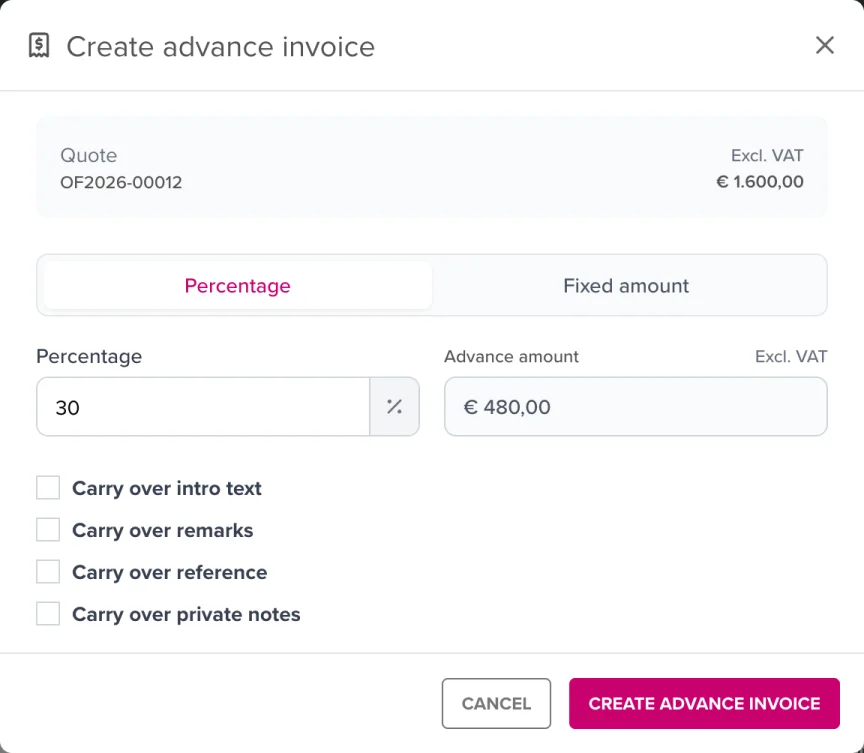
In the dialog you choose how much to invoice as an advance:
You immediately see an overview of earlier advance invoices on the same quote, showing what has already been invoiced and what amount remains. The total of all advances combined may be at most 100% of the quote amount.
Optionally, carry over the intro text, remarks, reference and internal notes from the quote. Then click Create advance invoice.
The quote gets the status Partially invoiced (or Invoiced at 100%). Via the euro icon next to the quote you open Linked invoices, showing all advances, the total invoiced amount and the remaining amount.
When you later convert the quote to the final invoice (Create invoice), the dialog shows the existing advance invoices with the checkbox Deduct advance invoices as negative lines below (checked by default):
💡 Peppol: an advance invoice is sent via Peppol as a prepayment invoice (document type 386). On the final invoice, the advances are correctly processed in the UBL as a prepaid amount, so the payable balance is correct for the recipient.
Under Preferences, section Advance invoice, you’ll find:
| Setting | Meaning |
|---|---|
| Default advance percentage | The percentage suggested by default (1–100) |
| Separate numbering for advance invoices | If you choose Yes, advance invoices get their own number series; also fill in the Advance invoice starting number (e.g. VF2026-100). By default they follow the regular invoice numbering. |
Can I create an advance invoice without a quote? No. An advance invoice is always linked to a quote. First create a quote with the full amount.
I get a message that the total would exceed 100%. The total of all advance invoices on a single quote is limited to 100% of the quote amount. Check the overview in the dialog to see what has already been invoiced.
What is the difference with the “Already paid” field on an invoice? With Already paid you manually show an amount already received on a regular invoice. On advance invoices and on final invoices with deducted advances, that field is deliberately unavailable to avoid double deduction.
