Yes, you can adapt the look of your invoices to match your brand identity. There is no menu with ready-made templates to choose from, but you decide how your documents look yourself using these options:
These settings immediately apply to your invoices, quotes and credit notes.
You will land in the Invoice, quote & credit note display section.
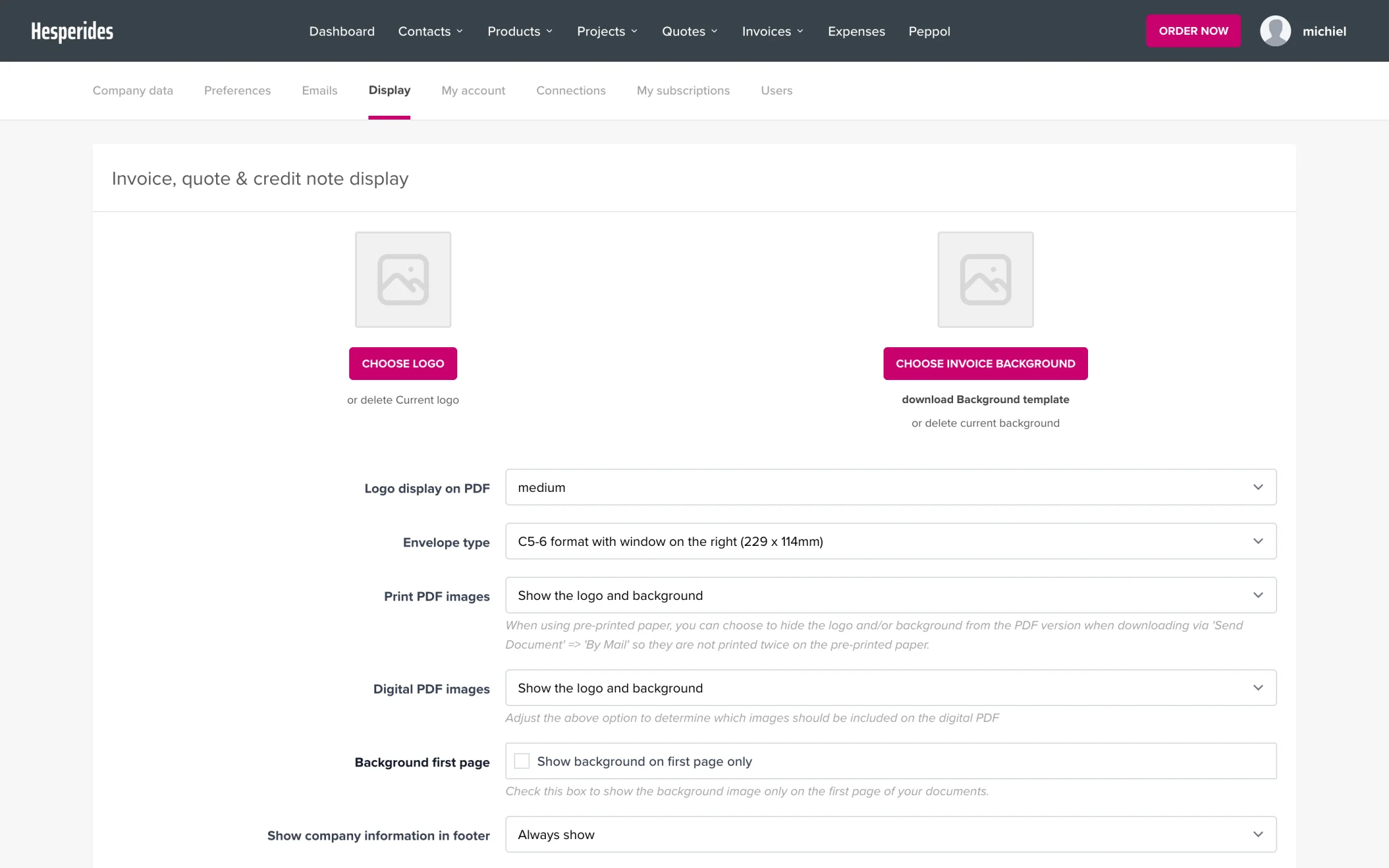
Your logo is uploaded as soon as you select the file; you do not need to click “Save” for this. Want to remove the logo? Click Delete current logo.
💡 Tip: Use a PNG with a transparent background for the best results.
Want to go beyond a logo? You can show a full background (for example with your brand colours or letterhead design) on your documents:
Here too, the upload happens as soon as you select the file. You can remove it via Delete current background.
Once a background is active, the Background first page option appears: check it to show the background only on the first page of your documents.
Below the upload buttons you will find a number of additional settings:
| Setting | What does it do? |
|---|---|
| Logo display on PDF | Determines how large your logo appears on the PDF |
| Envelope type | Determines the position of the address, so it fits neatly in the window of your envelope |
| Print PDF images | Leaves out the logo and/or background on the print PDF, useful with pre-printed paper |
| Digital PDF images | Determines which images appear on the digital PDF |
| Show company information in footer | Shows or hides your company details at the bottom of the document |
| Show terms and conditions on | Choose on which document types your terms and conditions appear |
Click Save at the bottom to store these choices (only the logo and background uploads happen automatically).
