Besides the data you enter directly on an invoice (customer, date, lines, remarks), every document has a number of extra settings. These let you define, among other things, the payment term, the document language, the VAT scheme, any discount and the Peppol references. You can find these options via the gear icon at the bottom of the document.
💡 Tip: These settings work in exactly the same way for quotes and credit notes.
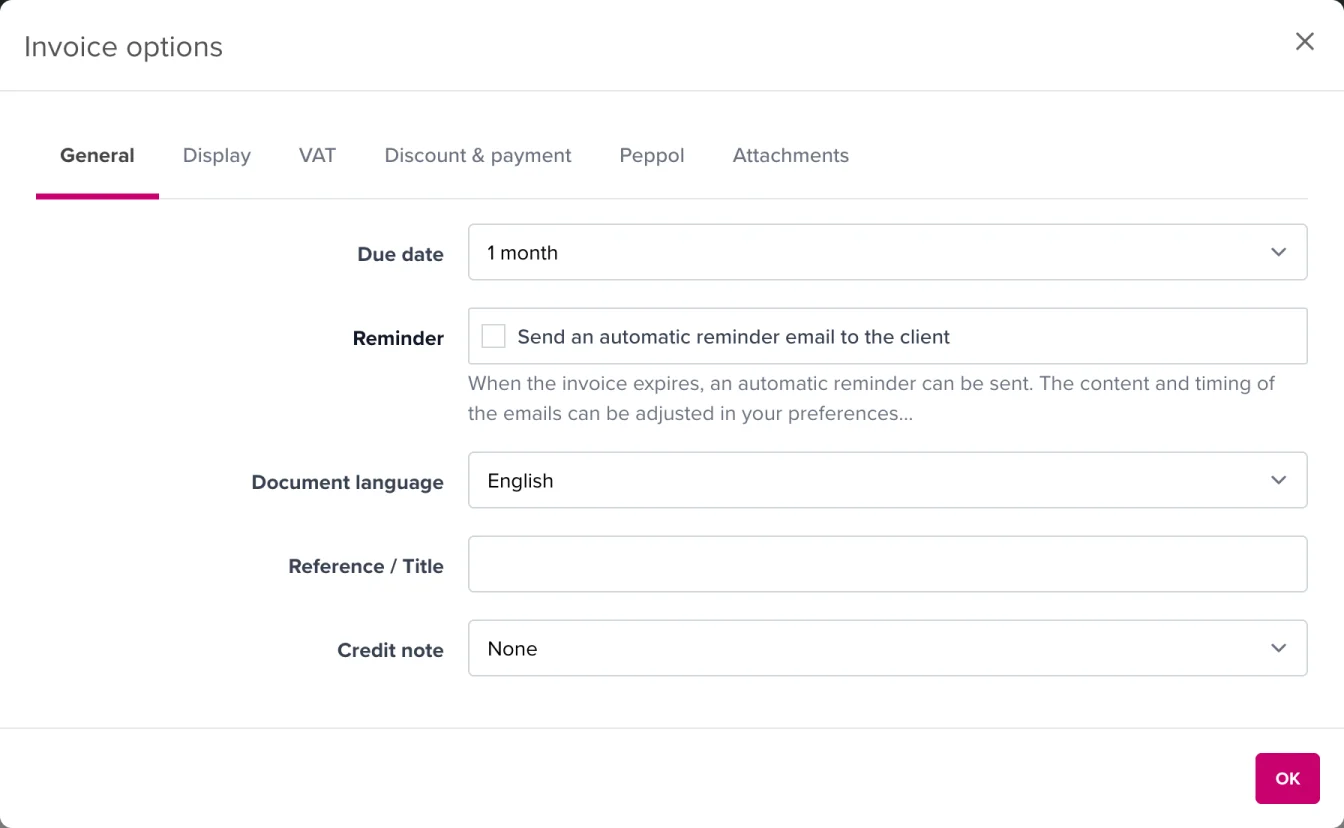
| Setting | What it does |
|---|---|
| Due date | The payment term. Choose e.g. 10 days, 30 days, 1 month or 30 days after end of month. The due date on the document is calculated automatically. |
| Reminder | Tick to automatically send a reminder email when the invoice becomes due. You can adjust the content and timing via Settings → Emails. |
| Document language | The language in which the document is drawn up (Dutch, French, English or German). This is independent of the language of the application. |
| Reference / Title | A custom reference or title that appears on the document. |
| Credit note | Indicate whether the document is a credit note. |
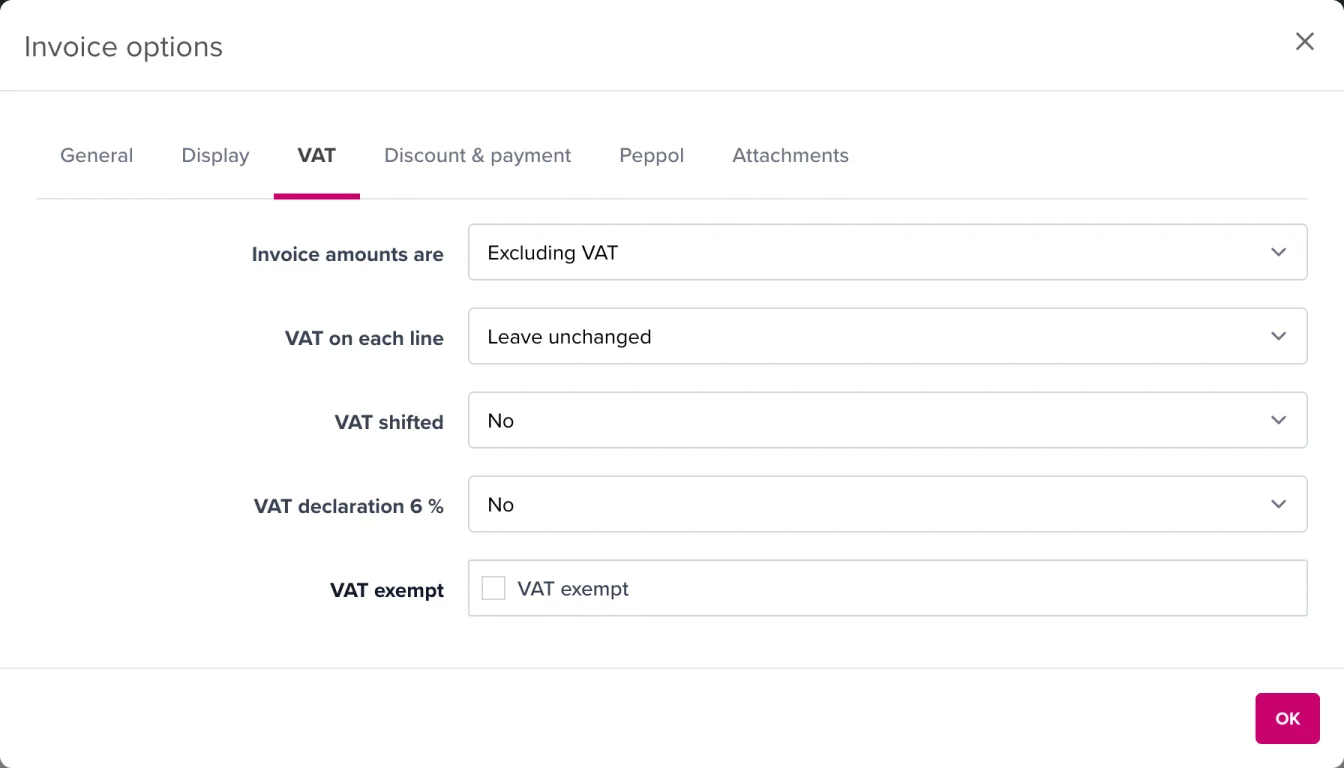
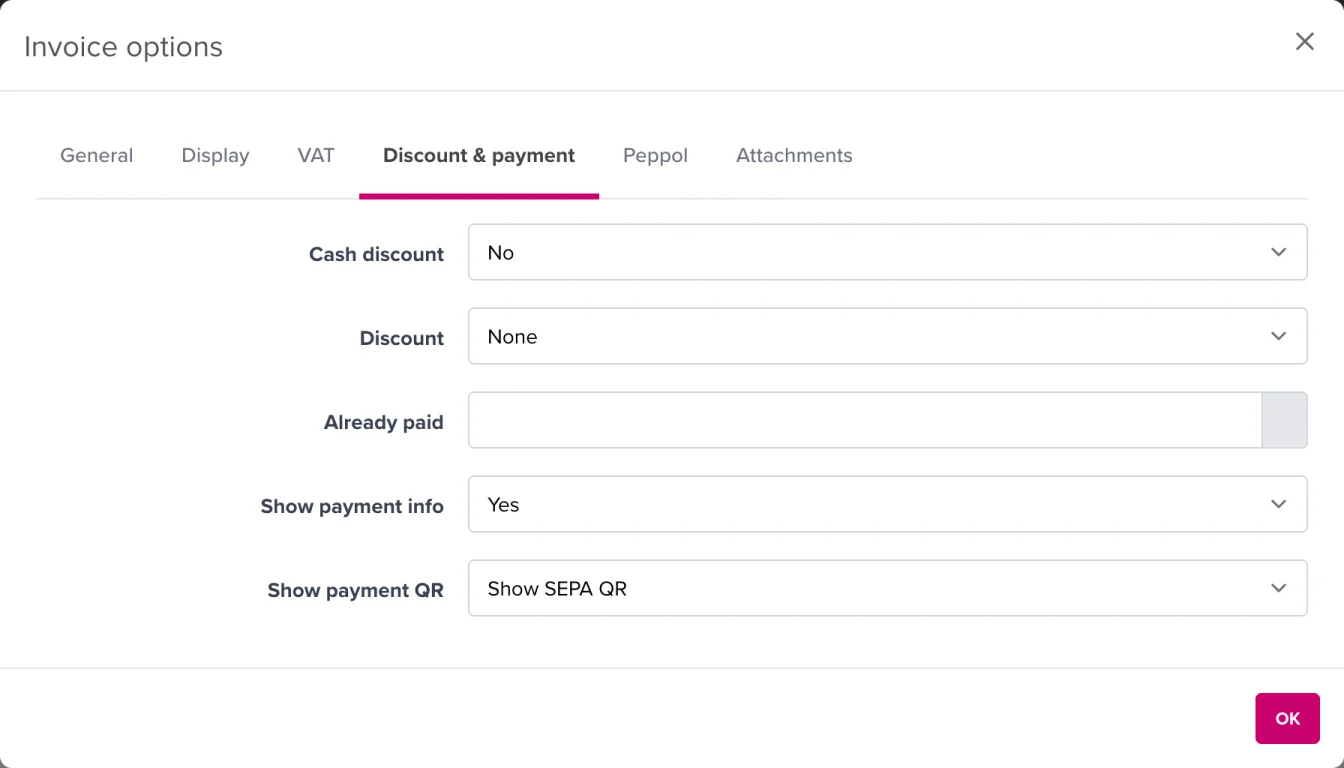
In this tab you fill in optional references that are included in the Peppol document (UBL). These fields are mainly important when invoicing the government or large companies.
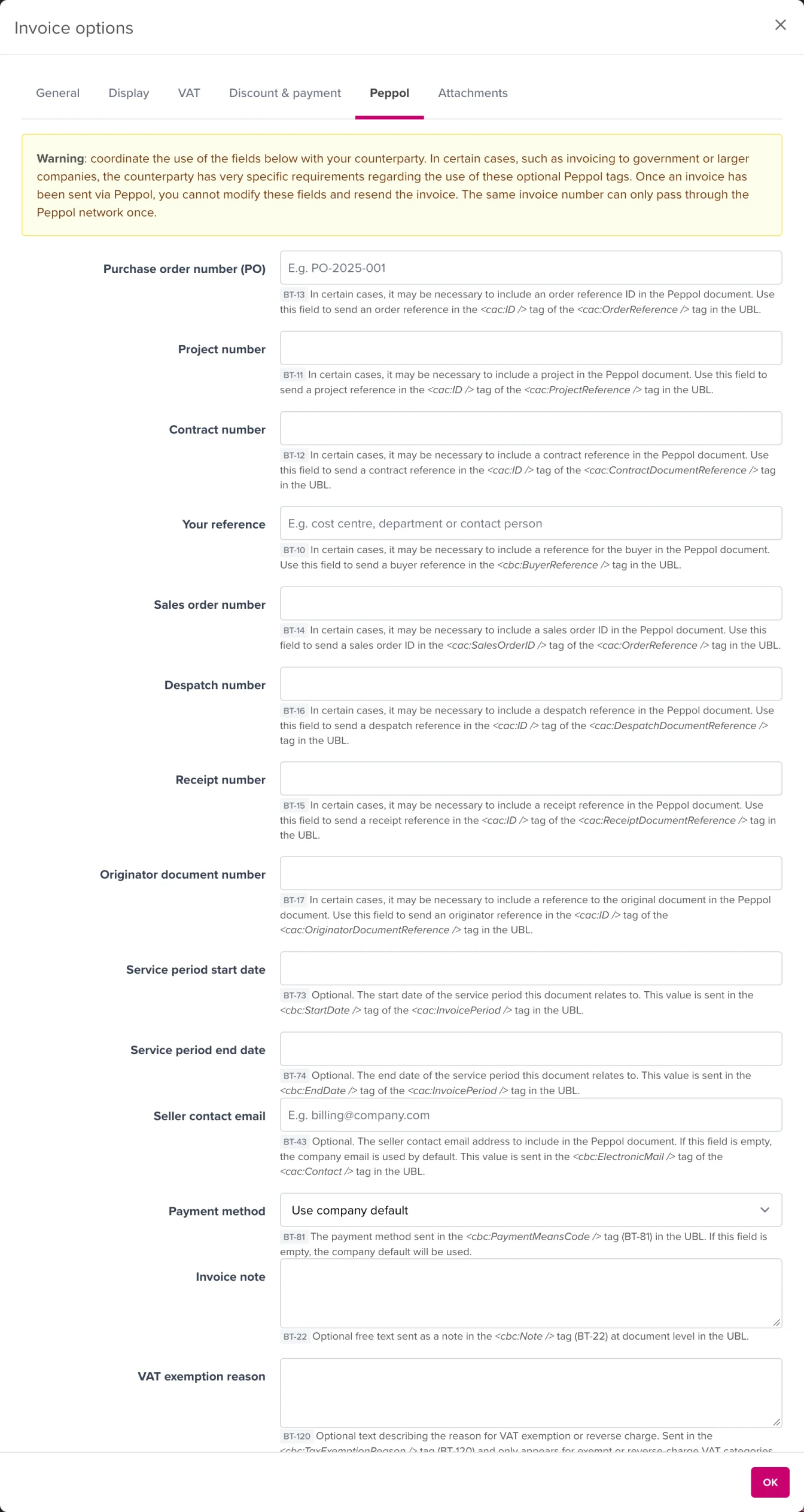
Among other things, you can include:
⚠️ Please note: Coordinate the use of these fields with your customer. Once an invoice has been sent via Peppol, you can no longer adjust these fields or resend the invoice with the same number.
Read more in What should I pay attention to when sending invoices and credit notes?
Add extra files that are sent along with the document (e.g. a purchase order or a work sheet).
After making your changes, click OK in the window and then Save on the document itself, so your changes are kept.
💡 Tip: Default values for the payment term, reminders and payment method are set company-wide via Settings → Preferences. You can always deviate from them per document here.
